
Taming Document Chaos in a Small Business Without Buying New Software
A pragmatic system for invoices, contracts and scans: naming conventions, PDF hygiene, archives and backups — using tools you already have, mostly in the browser.
Every small business we have worked with has the same folder. It is called something like "Documents" or "Scans" or, in one memorable case, "New Folder (3)", and inside it are four hundred files named IMG_20240312.jpg, invoice.pdf, invoice (1).pdf, and contract_final_FINAL_v2.pdf. Nobody can find the March rent invoice when the accountant asks for it, so somebody spends forty minutes opening PDFs one by one.
The reflex response is to buy software — a document management system, a subscription, another login. We think that is usually the wrong move for a team under twenty people. The problem is not that you lack a database; it is that you lack a convention. A convention is free, works in any file explorer ever made, survives when you switch laptops or cloud providers, and takes one afternoon to adopt.
Here is the system we run ourselves and recommend to clients. It is deliberately boring. Boring is what survives.
One naming convention, applied ruthlessly
Every document gets a name in this shape: date, type, counterparty, detail. Written out: 2026-03-14_invoice_acme-corp_hosting-march.pdf. The date always comes first and always in year-month-day order, because that is the only format that sorts chronologically when a file explorer sorts alphabetically. That single trick eliminates most searching — scroll to March 2026 and everything from that month sits together.
- Use YYYY-MM-DD at the start of every filename, no exceptions
- Use lowercase and hyphens or underscores, never spaces (spaces break scripts, URLs and some backup tools)
- Use a small fixed vocabulary for the type: invoice, receipt, contract, quote, statement, filing, id
- Put the counterparty name in a consistent short form — pick "acme-corp" once and never write "ACME" or "Acme Corporation" again
- Rename at the moment a document arrives, not "later"; later never comes
The last point is the whole game. A convention that is applied 60% of the time is worse than no convention, because you now have to search two systems. When an invoice lands in your inbox, the twenty seconds you spend renaming it is the entire cost of this system.
A folder tree with a hard depth limit
Deep folder hierarchies feel organised and behave terribly. Six levels down, nobody remembers whether the tax filing lives under Finance/Tax/2026 or Legal/Compliance/Tax. We cap our tree at two levels: a top level by function (finance, legal, hr, clients, assets) and one level below it by year or by counterparty. That is it. Because filenames already carry the date, type and counterparty, the folder does not need to encode any of that — it only needs to narrow the search to a few dozen files, and your eyes plus alphabetical sort do the rest.
One rule worth stealing: contracts get a folder per counterparty, invoices get a folder per year. Contracts are few and long-lived; you look them up by who. Invoices are many and time-bound; you look them up by when, usually because an accountant asked for a date range.
PDF hygiene: merge, split, compress, and stop emailing 40 MB files
Documents rarely arrive in the shape you need them. A vendor sends five separate PDFs for one order; a bank statement arrives as a 60-page file when you need pages 12 to 14; a scanned agreement weighs 38 MB because the scanner defaulted to 600 dpi colour. Four small operations fix nearly all of it: merge related pages into one file, split out the pages you actually need, compress scans down to a sane size, and rotate the pages that came in sideways.
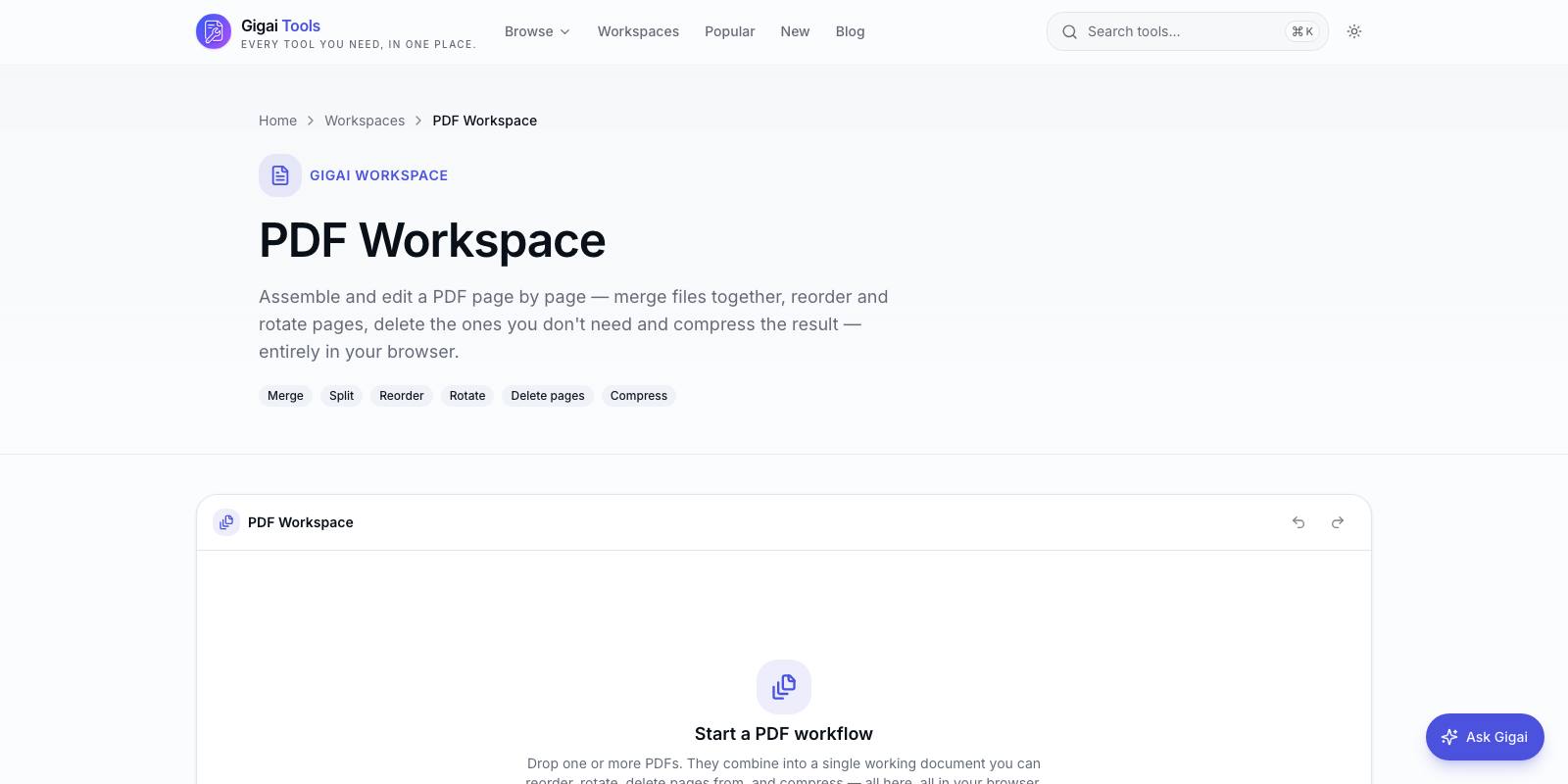
None of this needs installed software or an upload to a random website. Browser-based tools can now do all four operations locally — our own free Gigai Tools platform (tools.gigaikripaservices.com) runs merge, split, compress and the rest entirely in your browser, so the invoice never leaves your machine, which matters more than people think when the document is a client contract or someone's ID proof. A 38 MB scan typically compresses to 2 or 3 MB with no visible loss, which is the difference between an email that sends and one that bounces.
Our rule of thumb: one logical document, one PDF file. If a purchase involved a quote, an invoice and a payment receipt, we keep them as three files (three types, three dates) — but a 5-part scan of one contract gets merged into one file the day it arrives.
Scans are not documents until they are searchable
A scan is a photograph of a document. Your operating system's search cannot read it, which means every scanned page is invisible to the one tool people actually use to find things. OCR — optical character recognition — fixes this by adding an invisible text layer to the PDF, so searching your files for "security deposit" surfaces the scanned rental agreement that mentions it.
We treat OCR as a standard step for anything that arrives on paper: scan, OCR, rename, file. It adds under a minute per document and pays for itself the first time you find a three-year-old agreement by searching for a phrase you half-remember. Two practical notes: scan at 300 dpi (600 is wasted bytes, 150 makes OCR unreliable), and OCR before you compress aggressively, because heavy compression can degrade text enough to hurt recognition.
Close each year with an archive ritual
Active folders should stay small. Every January we zip the previous year's finance folders into one archive — 2025-finance.zip — verify it opens, and move it to an archive area. The working tree stays fast to scan by eye, and the archive is a single immutable object that is trivial to back up and trivial to hand to an auditor. Most jurisdictions expect financial records to be kept for five to eight years; a dated zip per year makes that retention rule a filing operation instead of a panic.
Do not password-protect archives with a password only one person knows. We have watched a business lose access to two years of records because the person who zipped them left. If encryption is needed, the password goes in the company password manager, not in someone's head.
Backups: two copies you did not have to think about
The classic advice is 3-2-1: three copies, two media, one off-site. For a small business the honest minimum is simpler — your working documents live in a synced cloud folder (Drive, Dropbox, OneDrive, whichever you already pay for), and once a month a copy of the whole tree goes to an external drive that lives somewhere other than the office. Cloud sync protects against a dead laptop; the offline drive protects against ransomware and a compromised account, which sync alone does not, because sync happily replicates encrypted or deleted files everywhere within minutes.
Set a monthly calendar reminder for the drive copy. A backup process that depends on remembering is a process that ends in July.
The workflow, end to end
Here is the whole pipeline for an arriving document, and it takes under two minutes. Receive the file. If it is paper, scan it at 300 dpi. Run OCR if it is a scan. Merge or split so one logical document equals one file, compress if it is over a few MB — all doable free in the browser without the file leaving your device, on Gigai Tools or anywhere else you trust. Rename to date_type_counterparty_detail. Drop it into the right two-level folder. Done. In January, zip last year and copy to the offline drive.
No new software, no subscription, no migration project. The entire system is a naming rule, a shallow folder tree, four PDF habits, and two backup locations. We have run our own studio paperwork this way for years, across accountants, audits and one very abrupt laptop death, and the forty-minute invoice hunt has simply stopped being a thing that happens.

Gigai Kripa Services
Web · App · Software · Game studio
Software, tools, WordPress and games — built end-to-end.
Explore our products →